Setting Up Project Tags
In some cases, you may want to make specific project tags a mandatory or optional requirement for creating a new project. Whenever you add this requirement, the mandatory and optional tags will appear in the Create a Project dialog as shown below whenever you create a new project. You should note that project tags can also be added after you create a new project (see Adding Project and Item Tags).
Create a Project dialog

 How to Add Project Tags
- Click the Settings button
 on the left sidebar of the Organizer dialog.
The Organizer Settings dialog appears.
- Click Project Tags in the Navigation pane.
The Project Tags panel appears in the dialog.
- Click Add in the Project Tags panel.

A new tag is added.
- Do the following, as required:
- Double-click inside the caption box and then enter a name for the project tag, as shown below.
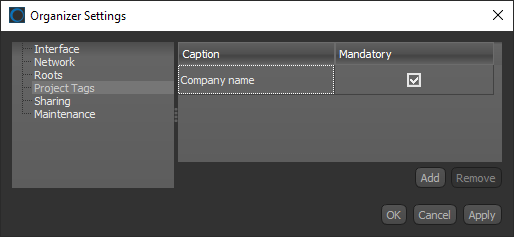
- Check the Mandatory box if you want to make entering the tag mandatory whenever you create a new project.
- Uncheck the Mandatory box if you want to make entering the tag optional whenever you create a new project.
- Double-click inside the caption box and then enter a name for the project tag, as shown below.
- Add additional project tags, as required.
- Click Apply or OK to save your changes.
How to Remove Project Tags
- Click the Settings button on the left sidebar of the Organizer dialog.
The Organizer Settings dialog appears.
- Click Project Tags in the Navigation pane.
The Project Tags panel appears in the dialog.
- Select the project tag that you want to remove.
- Click Remove in the Project Tags panel.
- Remove additional project tags, as required.
- Click Apply or OK to save your changes.